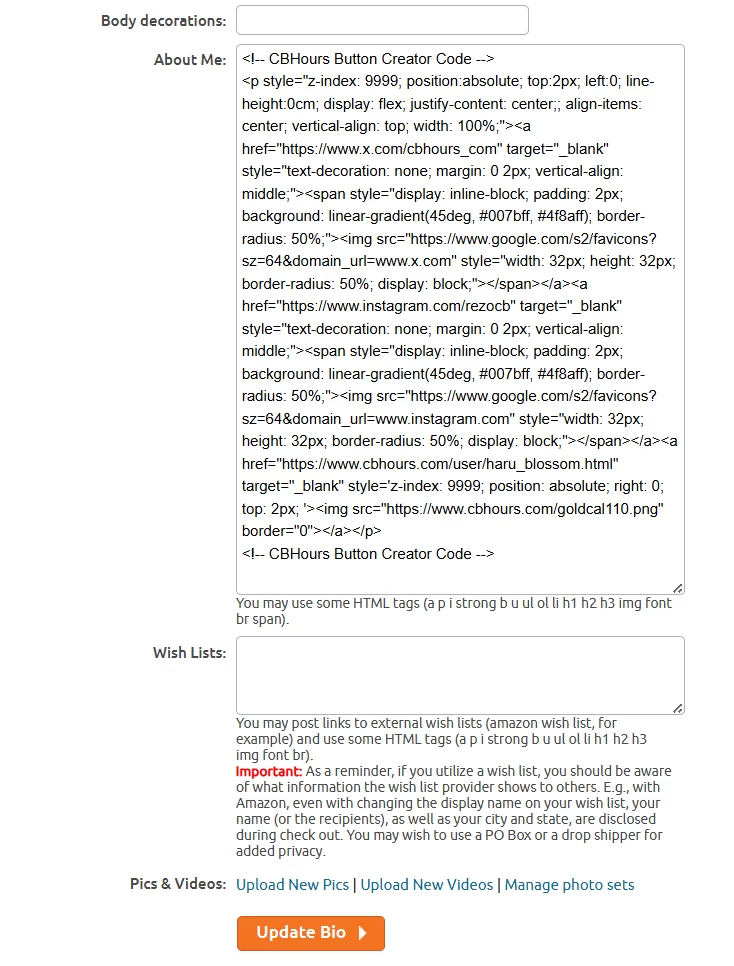
Step 1: Add Your Model Name (Optional)
If you want to include a CBHours trophy, start by entering your Chaturbate model name in the "Model Name" field and click "Check". This will verify your name and show you the trophies you are eligible for based on your recent broadcast hours.
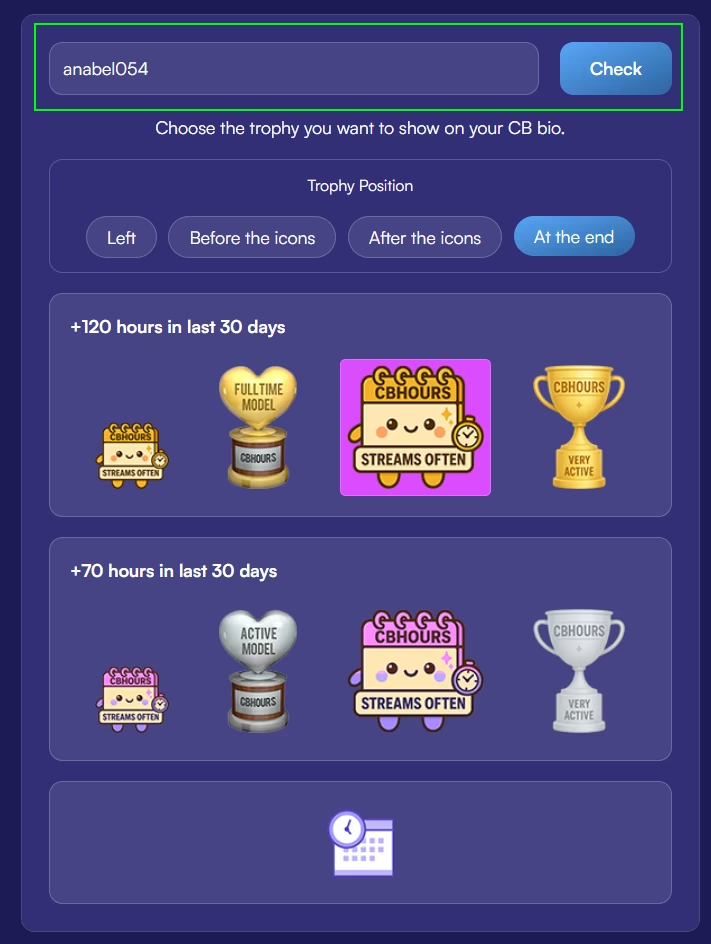
Step 2: Choose a Trophy and its Position (Optional)
Once you've checked your name, you can select one of the available trophies. You can also choose where the trophy will appear in relation to your social media icons using the "Trophy Position" options.
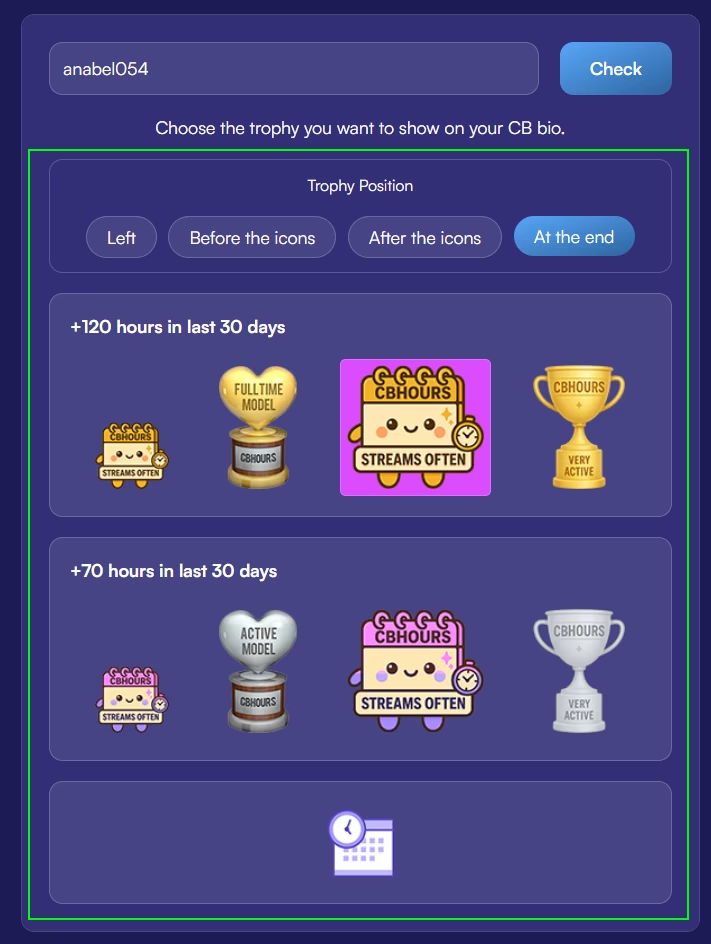
Step 3: Choose Your Icon Style
You have two main options for icon styles:
- Auto (Custom Favicon): This is the most flexible option. It allows you to use any website's icon (favicon). Simply paste the full URL of the website, and the tool will automatically fetch its icon. You can add multiple custom URLs. You can also customize the gradient border of these icons.
- Pre-made Styles: You can choose from a selection of pre-designed icon styles. If you choose this option, you can also select the icon size (32px or 48px).
Step 4: Fill in Your Social Media Details
Depending on the icon style you chose, you will either see a list of social media inputs or a set of custom URL fields. Fill in your usernames or full profile URLs as indicated by the placeholder text.
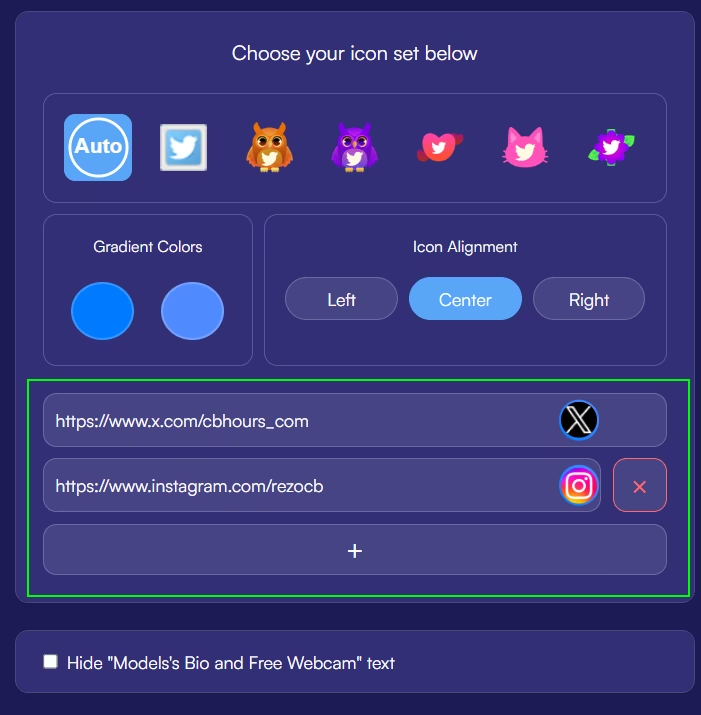
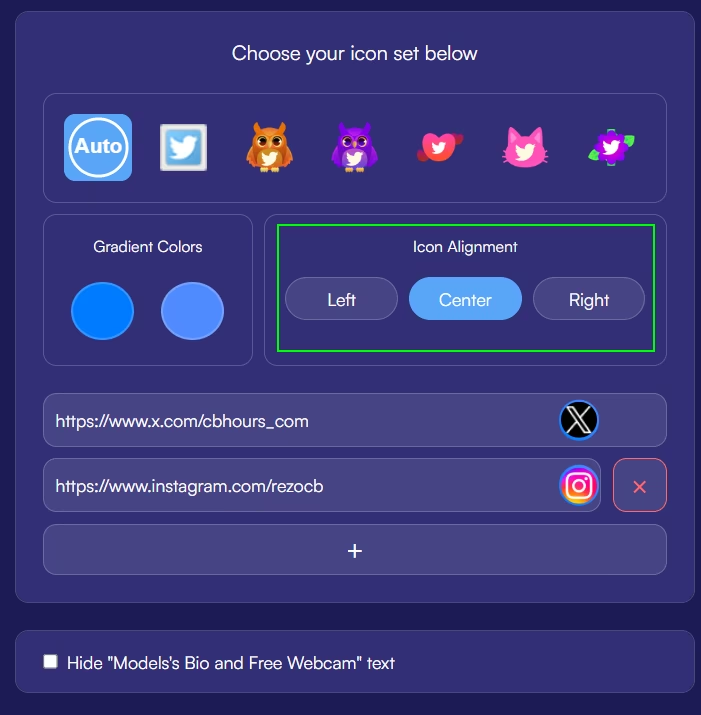
Step 5: Customize Alignment and Other Settings
Use the "Icon Alignment" options to choose if your icons should be on the left, center, or right of your bio.
You can also choose to hide the "Model's Bio and Free Webcam" text on your Chaturbate page by checking the "Hide 'Models's Bio and Free Webcam' text" checkbox. This will apply a blur effect to that area.
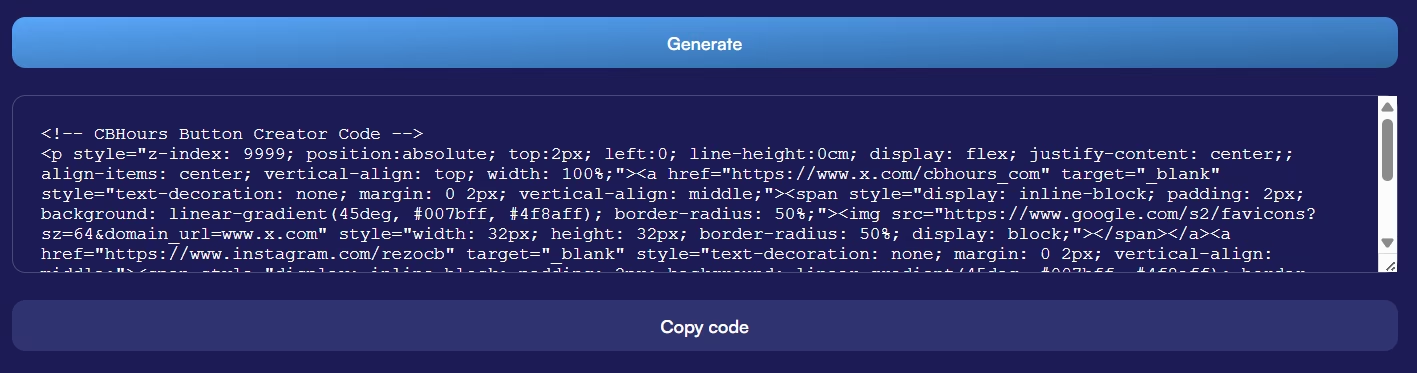
Step 6: Generate and Copy the Code
Once you are happy with your preview, click the "Generate" button. The HTML code will be generated in the text box below.
Click the "Copy code" button to copy the code to your clipboard.
Step 7: Paste the Code into Your Chaturbate Bio
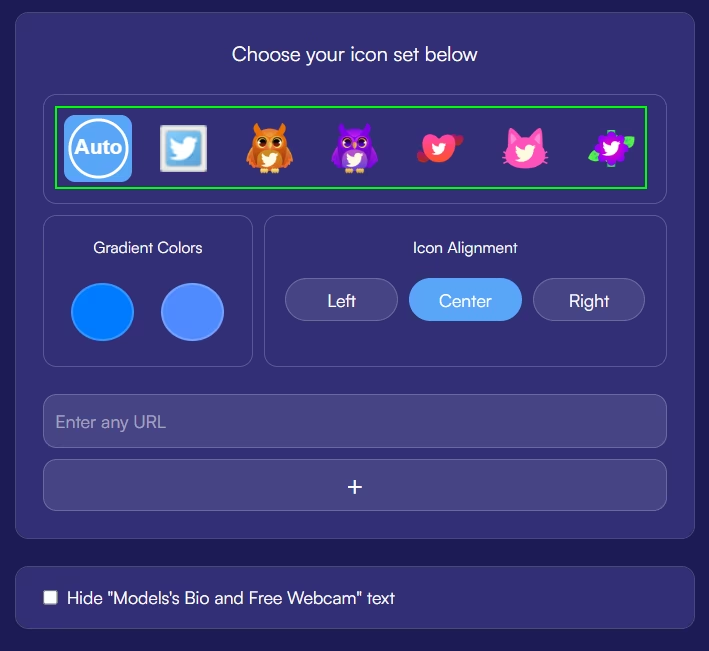
Go to your Chaturbate profile and click "Edit Your Bio". Paste the copied code into the "About Me" or "Wish List" section by right clicking the empty text area and clicking paste. Save your changes by clicking the orange button that says "Update Bio", and you're done!